

Looking for a new hobby or a new business venture? Podcasts have quickly become a rather lucrative market. And it is super simple to enter.
Whether you are wanting to enhance your creativity or find a fun way to spend time with friends, a podcast is the solution.
All you need is a recording device such as a laptop, desktop, tablet or smartphone and the ability to do some minor editing (also see, ‘Zoom Audio Recorder‘).
Where can you create your podcast?
There are thousands of platforms available to help you record, edit and publish your new podcast. However, we highly recommend Audacity.
In this article, we cover what Audacity is and how you can record your podcast.

What Is Audacity?
For Windows, Linux, and macOS, there is a free audio recording and editing application called Audacity.
Although it wasn’t made expressly for podcasts, it’s a common option for podcast recording.
Although there is a steep learning curve, you don’t need to explore all of its features in order to record, edit, and export a high-quality podcast.
Whether you are a working producer or have no skill in the world of podcasting, Audacity helps make each step of the process simple.
ALSO SEE: What To Do With Audacity For Podcasting?
How To Use Audacity For Recording
When you take a deeper look at the ways in which Audacity works, it can become complicated and overwhelming.
However, you don’t need in-depth knowledge on the software to be able to create your podcast.
We will take you through each step to begin recording your podcast. From basic settings to editing so that you can create and publish your podcast to a well known podcast host.
1. Select Your Audio Host
Click the box located on the left of the microphone icon in the top toolbar. The host you select will be dependent on your software.
Those using Windows should select MME, while macOS users should select Core Audio.
Your audio host is the software your device will use to record your audio input for you to then edit and publish.
|
🏆 Best Overall

|
🥇 Best Hosting

|
🚀Growing

|
🎤 Distribution

|
|
5.0
|
4.7
|
4.5
|
4.4
|

2. Audio Interface Or Microphone

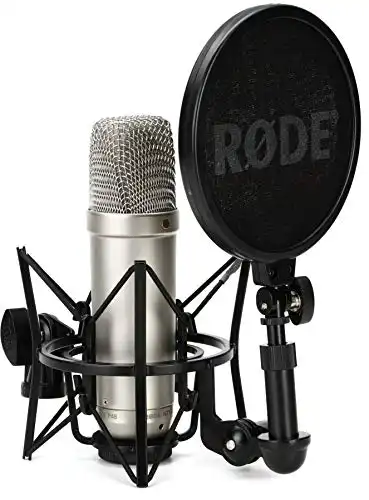
Select the menu located to the right of the microphone icon to choose your audio interface microphone (also see, ‘Best Audio Interface For Podcast‘).
Audacity will use your selected device to record your podcast.
However, if you are recording from two microphones and you do not have an input mixing device, you will need to position the box next to the mic input to two (Stereo) recording channels.

|

|

|
|
|
Primary Rating:
4.6
|
Primary Rating:
4.7
|
|